Your first engine, step by step
A friendly, no-jargon walkthrough that takes you from a brand-new account to a live Context Engine you own and operate — in about half an hour.
This is the one to follow if you've never done this before. No technical background needed — if you can fill in a web form and copy a password somewhere safe, you can stand up a Context Engine. We'll go slowly, explain why at each step, and tell you exactly what you'll see on screen.
By the end you'll have a real, running Context Engine on a real server, reachable at its own web address, ready to hand to the person who'll use it — and you'll know how to keep an eye on it.
How long will this take? About 20–30 minutes, and most of that is the computer doing the work while you watch a progress log. The hands-on part is just a few forms.
What you'll need before you start
- A Relote Cloud account (you're probably already signed in if you're reading this).
- A way to create servers — either an account with a hosting provider (Hetzner or DigitalOcean), or a server you already own. More on this in Step 3.
- A safe place to keep a few secrets — a password manager is ideal. You'll be handed two or three keys along the way that are shown only once.
That's it. You don't need to know anything about servers, Linux, or networking. Relote does the technical work; you make the decisions.
The three words to know
Everything here is built from just three things stacked on top of each other. Learn these and the rest makes sense:
| Word | In plain language |
|---|---|
| Provider | The company that rents you computers in a data centre (Hetzner, DigitalOcean). Or your own machine. This is where servers come from. |
| Server | One rented computer. It's the ground a Context Engine stands on. One server can hold several engines. |
| Context Engine | The actual product your customer uses — fully walled off in its own space on the server. One engine = one person or one team. |
So the whole journey is: connect a provider → make a server → put an engine on it. That's the three steps. The rest is just clicking go and saving your keys.
Provider → Server → Context Engine (the thing your customer uses)
Step 1 — Get your bearings
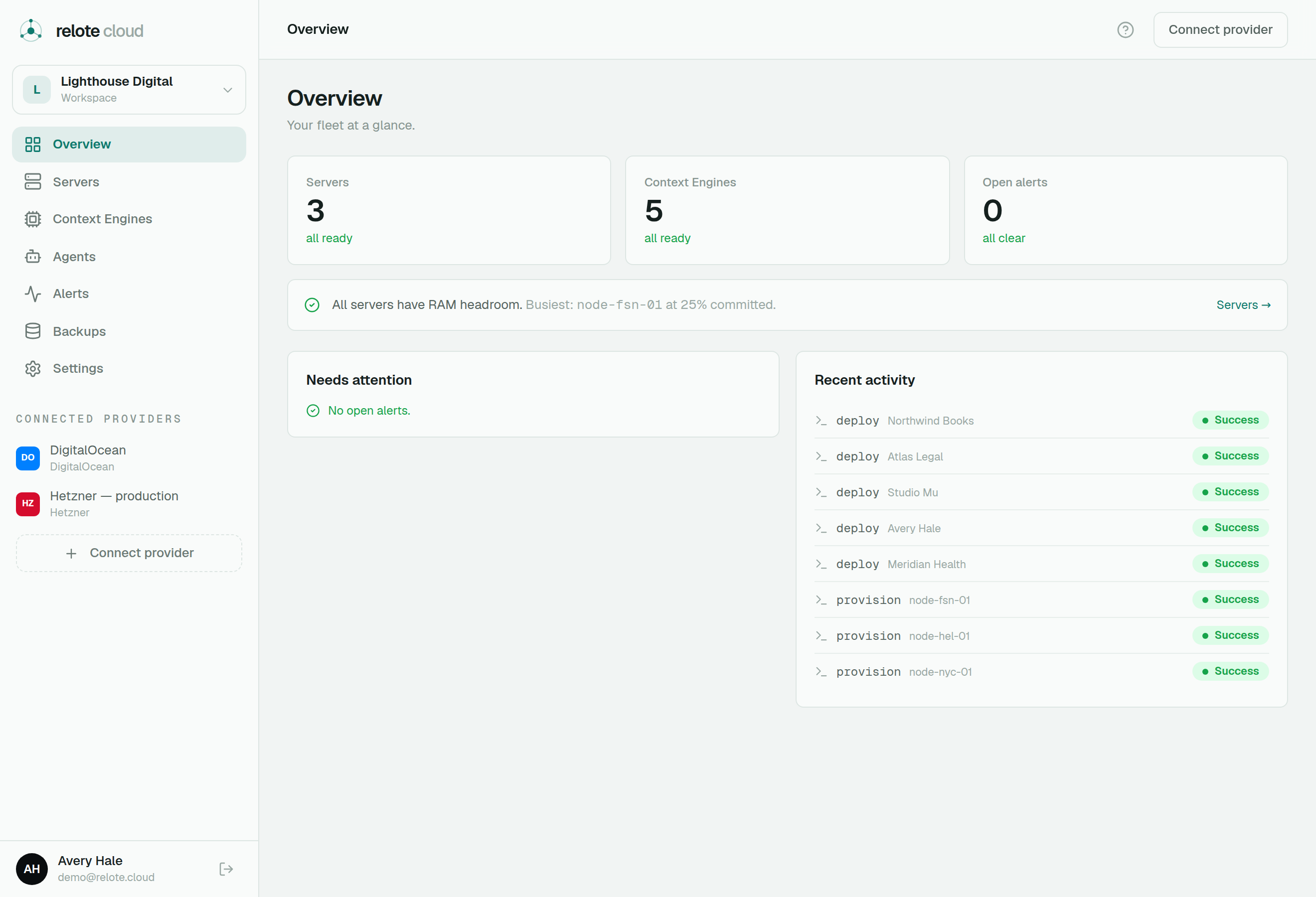
Once you're signed in, take ten seconds to look at the sidebar on the left. You'll come back to these:
- Overview — your home base; a glance at everything's health.
- Servers — the computers you've created.
- Context Engines — the engines running on them.
- Alerts — Relote tells you here if something needs attention.
- Backups — sealed copies, for peace of mind.
- Settings — your workspace name and team.
You don't need to touch most of these yet. We'll use Servers and Context Engines in a moment.
Step 2 — You're already in your workspace
Everything you create lives inside an organization — think of it as your workspace. You got one automatically when you signed up, and you're inside it right now (you'll see its name near the top of the sidebar).
For your very first engine, you don't need to do anything here — the default workspace is fine. Later, when you want to separate clients or invite teammates, read Organizations & members. For now, carry on.
Tip: A common pattern is one organization per client company, or just one workspace for everything if you're a solo operator. You can always add more later.
Step 3 — Connect a hosting provider
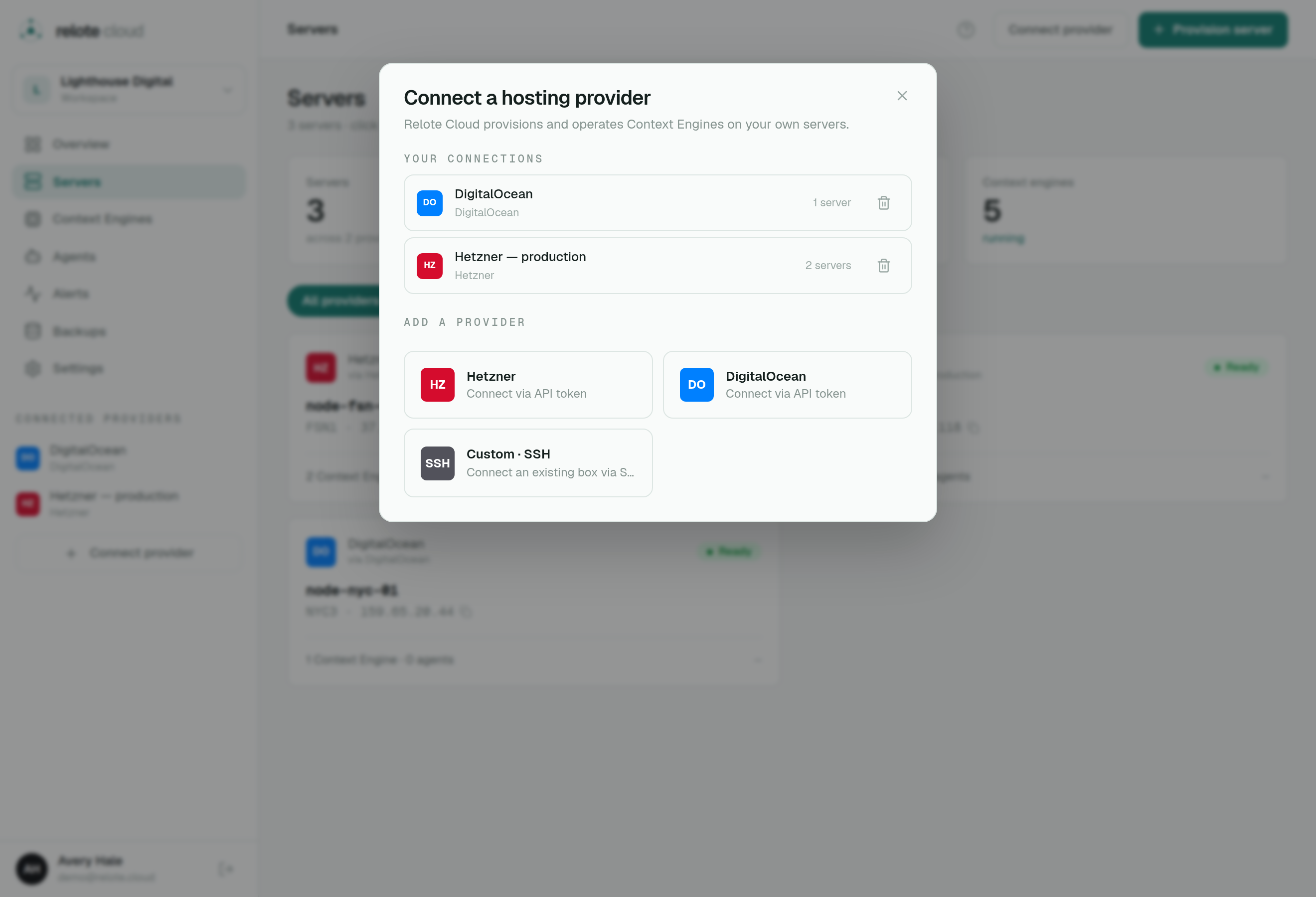
Relote needs permission to create a server somewhere. That somewhere is your provider. There are two paths:
- Hetzner Cloud or DigitalOcean — if you have (or open) an account with them, you'll create an API token in their dashboard and paste it into Relote. The token is just a long password that lets Relote create and manage machines for you. It's encrypted and never shown again once saved.
- Bring your own server — already have a fresh Ubuntu machine? Connect it directly. Relote will set it up but will never create or destroy it — that stays in your hands.
Do it now: click Connect provider in the sidebar, pick your provider, and paste the token (or enter your own server's details). When you're choosing token permissions in Hetzner/DigitalOcean, allow it to manage servers.
The full details, including exactly what the token can and can't do, are in Connect a hosting provider.
Not sure which provider? Hetzner is a popular, low-cost choice and is well-trodden here. If you have no preference, start there.
Step 4 — Provision your first server
Now make the computer your engine will live on.
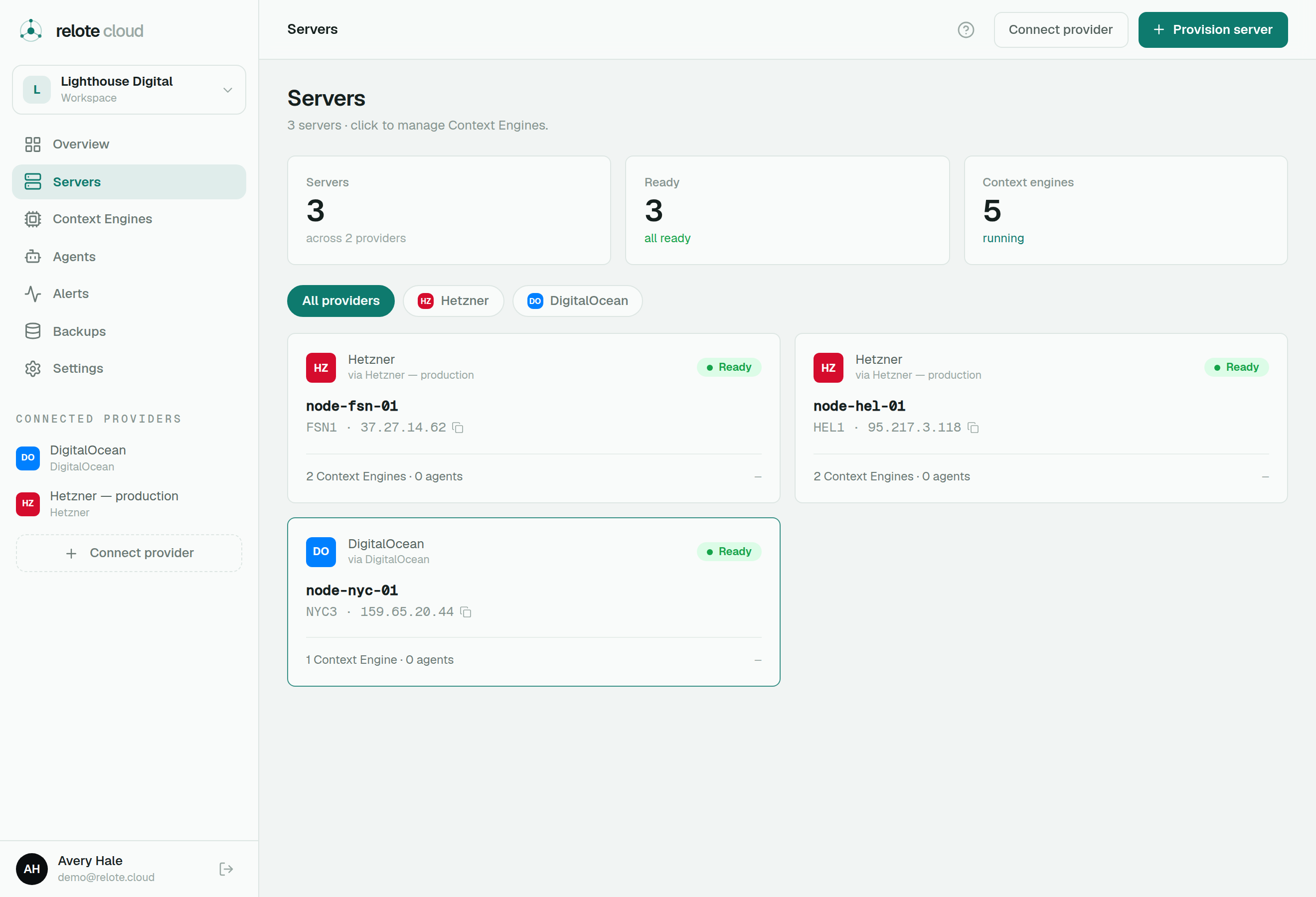
- Open Servers in the sidebar and start a new server.
- Choose your provider, a region (pick one near your customer for speed), and a size (how much memory and power). When in doubt, a mid-range size comfortably holds a few engines.
- Confirm — and watch.
Relote now connects to the fresh machine and sets everything up for you: the isolation layer that keeps engines apart, a web server that fetches its own HTTPS certificates, a firewall, a locked-down operator account, and a small health "heartbeat." You'll see all of this happen as a live, scrolling log. You don't need to understand it — just wait for it to say Ready.
This is the slow part — and it's normal. Provisioning takes several minutes. Grab a coffee. Nothing is wrong; the computer is being built and hardened.
Two things worth knowing, explained fully in Provision a server:
- Only point Relote at a server dedicated to this. Provisioning reconfigures the machine's firewall and web server — never aim it at a box already running other websites.
- The server page later shows committed RAM, so you can see how many more engines it can hold before you fill it up.
Step 5 — Deploy your first Context Engine
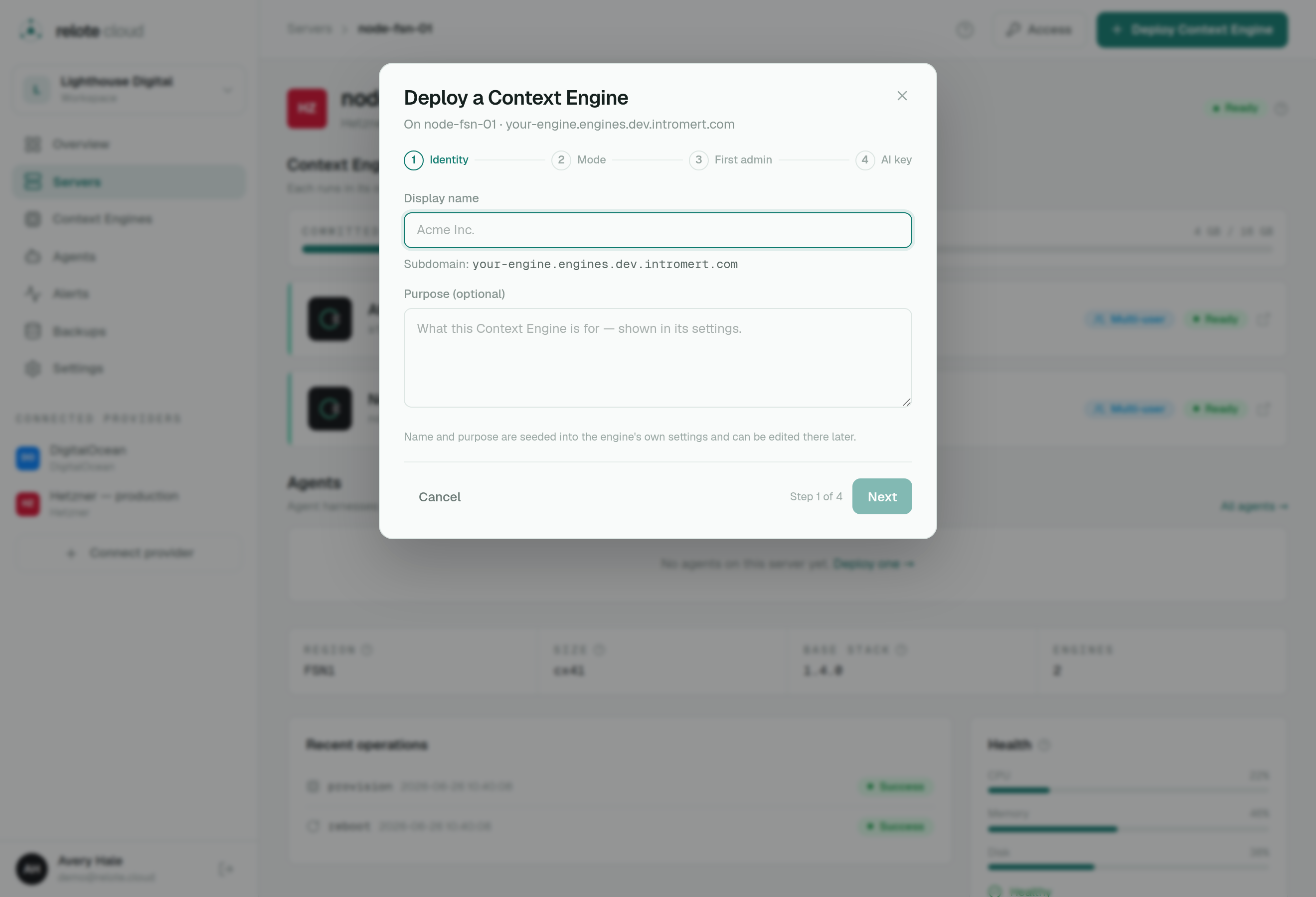
This is the moment it all comes together. From your Ready server, deploy a Context Engine onto it.
You'll make a couple of simple choices:
- Mode — pick Single-user for one person, or Multi-user for a team with several members. Choose carefully: this can't be changed later. If it's for one individual, single-user is right.
- The engine automatically gets its own web address (a subdomain) with HTTPS. This is the link you'll hand your customer, and it stays the same even if you later move the engine to another server.
- Email is optional and can be set up afterwards — skip it for now.
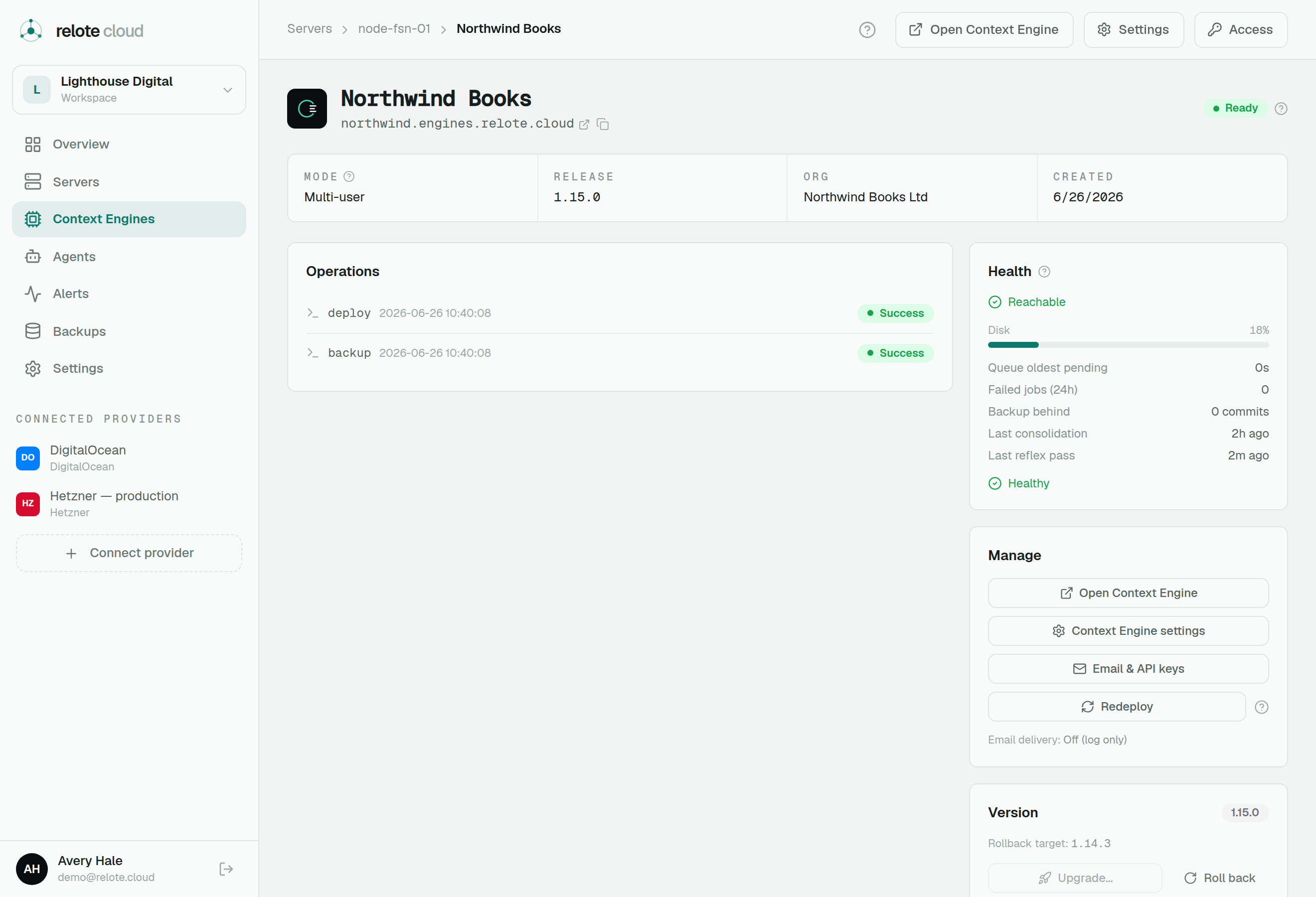
Hit deploy and, just like before, watch the live log. It ends with a health check. When it turns green, your engine is alive and reachable at its address.
Daimon (v2) engines need a little setup after they go green. They boot healthy but dormant — you'll finish sign-in and provider keys from the engine's own Systems page (a "Setup required" banner reminds you). Full detail below.
Full detail lives in Deploy a Context Engine.
Step 6 — Save your keys (don't skip this!)
Along the way Relote hands you a few secrets that are shown only once. This is on purpose — Relote doesn't keep a readable copy, which is part of how it stays out of your customers' data. Copy each one into your password manager the moment you see it:
- A one-time recovery key for the engine (offered the first time it deploys). This is what lets you restore the engine from a backup later. Lose it and a sealed backup can't be opened.
- Your server's SSH key and sudo password, if you're shown them. These are your emergency "break-glass" way into the machine.
If you only do one thing carefully in this whole guide, let it be this step. The reasoning, and what each key is for, is in Backups & recovery and Server & engine access.
Why only once? If Relote could show you these again, it could read them too — and the entire promise is that Relote operates the engine without being able to see inside it. One-time secrets are how that promise is kept.
Step 7 — Hand it over
Your engine is live. Give the person who'll use it their web address (from the engine's page) and let them sign in and set up their own account on it. From their side, it's simply their Context Engine — they never see Relote, and you never see their content.
If they'll need the engine to send email (invites, notifications), you can turn that on now from the engine's Email & API keys panel — see the email options in Deploy a Context Engine.
Step 8 — Keep it healthy
You're an operator now — congratulations. Day to day, this is light-touch:
- Overview and each engine's page show health at a glance (green is good).
- Alerts tells you if something needs you — you don't have to go looking.
- When a new engine version is available in the same generation, you can upgrade with one click, and roll back just as easily if anything looks off. (The Daimon (v2) generation is reached by a fresh install, not an upgrade.)
- Backups are sealed automatically; you can restore from them if you ever need to.
The full operating routine is in Operating engines day to day.
You did it — the recap
If you followed along, you now have:
- A hosting provider connected to Relote.
- A hardened server, Ready.
- A live Context Engine at its own HTTPS address.
- Your recovery key and access secrets saved safely.
- A handle on where to look when something needs attention.
That's the whole loop. Standing up the next engine is the same path, minus the learning — often just a few minutes.
Where to go next
- Working with a team or multiple clients? → Organizations & members
- Want to understand the privacy promise you can make to customers? → Security & data sovereignty
- Something not behaving? → Troubleshooting & FAQ